Now, download the free and trial version of TunesGo on your computer to have a try!


How to transfer music from iPhone to computer
Step 1. Run the program and connect your iPhone to the computer
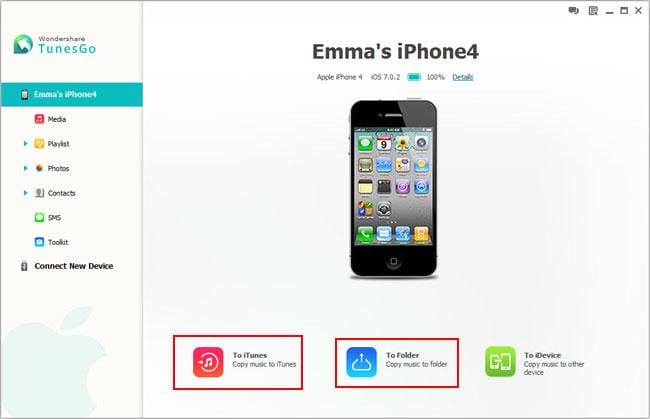
Before the transfer, you need to download, install and launch the iPhone music to PC transfer on your computer and connect your iPhone to it. After that, the program will detect your iPhone.
Note: To copy iPhone music to computer, you should install iTunes on your computer. But duiring the process, please don't run iTunes.
TunesGo fully supports iPhone 5s, iPhone 5, iPhone 5c, iPhone 4S, iPhone 4 and iPhone 3GS.
Step 2. Transfer music from iPhone to computer
In the main window, click "Export Music to Folder" at the bottom line. Then, your iPhone music will be instantly exported to the computer.
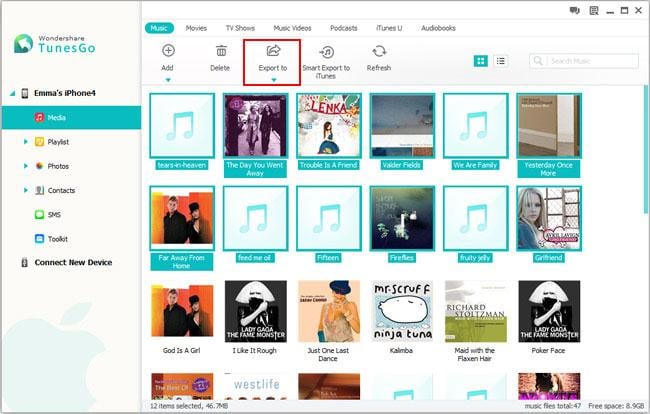
Actually, you also can copy iPhone music to computer in this way. Click "Media" in the left column to bring up the media window. There is a top line in the media window. Click "Music". Then comes to the music window and mark those songs you want to export and click the little triangle under "Export to". A drop-down list appears. Here, you need to select "Export to My Computer". After that, choose a location to save the exported songs on the computer.
Moreover, this professional iPhone to computer data transfer also can help you transfer your music from computer to your iPhone.

No comments:
Post a Comment